Configuring LoTW for use with WAZ Awards
The CQ WAZ rules state:
All contacts must be made from within the same DXCC Entity.
In accordance with this rule, LoTW maintains a WAZ Record for each DXCC entity from which you've operated and submitted a WAZ application for QSOs made from that DXCC entity.
To configure LoTW for use with WAZ Awards, you must take the following two actions for each entity from which you have operated
Merging LoTW WAZ Award Accounts Having the Same Entity
The first confirmation of a QSO that you digitally sign with a Callsign Certificate and submit to LoTW automatically creates an LoTW WAZ Award Account for that Certificate's callsign and entity.
If you've operated in a entity using more than one station callsign, additional LoTW WAZ Award Accounts are automatically created as QSOs submitted with each additional Callsign Certificate are confirmed via LoTW. Since confirmations of QSOs made with different station callsigns from the same entity all count towards your WAZ award progress from that entity, you should merge these LoTW WAZ Award Accounts together. Do not merge Club callsigns or callsigns for which your are the trustee, as QSOs made with such callsigns do not count toward your WAZ award progress. Note that merging LoTW WAZ Award Accounts is irreversable; if you have any questions or concerns, request help via lotw-help@arrl.org before proceeding.
| 1. | Log in to your LoTW Account |
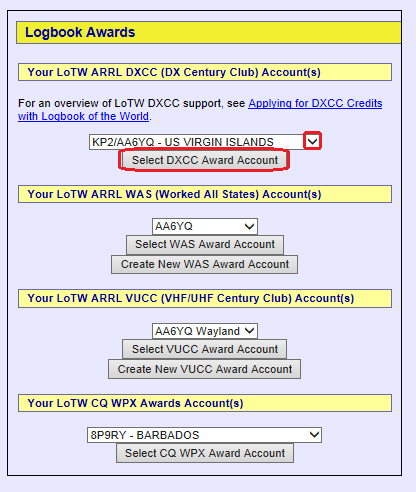
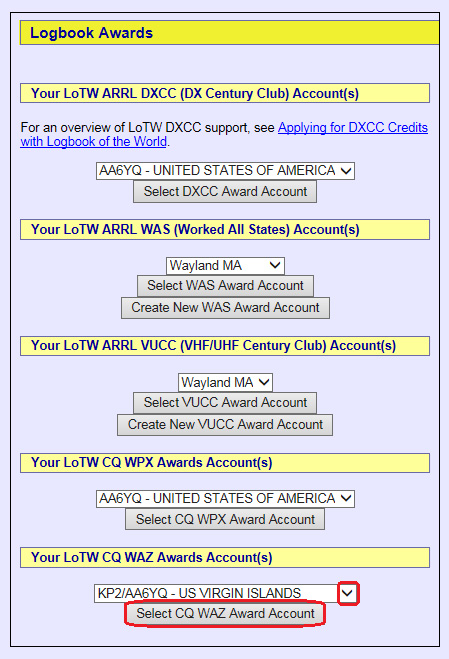
| 2. | Click the Award tab in the in the center of the page near the top; LoTW displays the Logbook Awards page, which provides access to your DXCC, WAS, VUCC, WPX, and WAZ Award Accounts.
|
 |
|
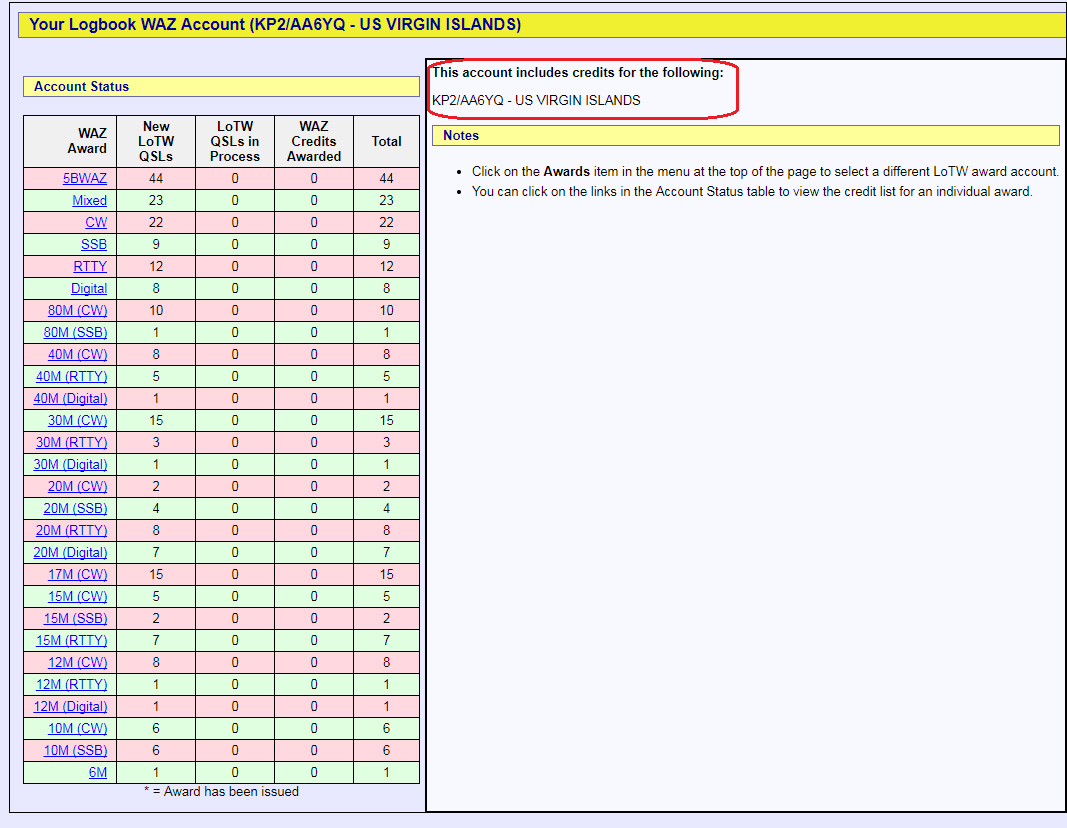
| 3. | LotW displays Account Status for the selected LoTW WAZ Award Account. Since there is only one WAZ Award Account in this first example, no merge operation is necessary; this WAZ Award Account can be linked to your WAZ Record. |
 |
|
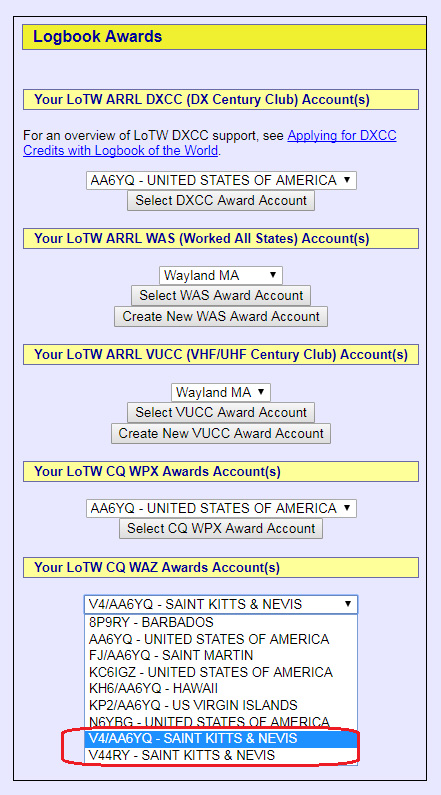
| 1. | In this second example, opening the selector immediately above the Select WAZ Award Account button displays 9 LoTW WAZ Award Accounts. Note the two accounts associated with SAINT KITTS & NEVIS, highlighted in red in the screen shot below. Since these are both personal Accounts, they should be merged into a single Account. |
 |
|
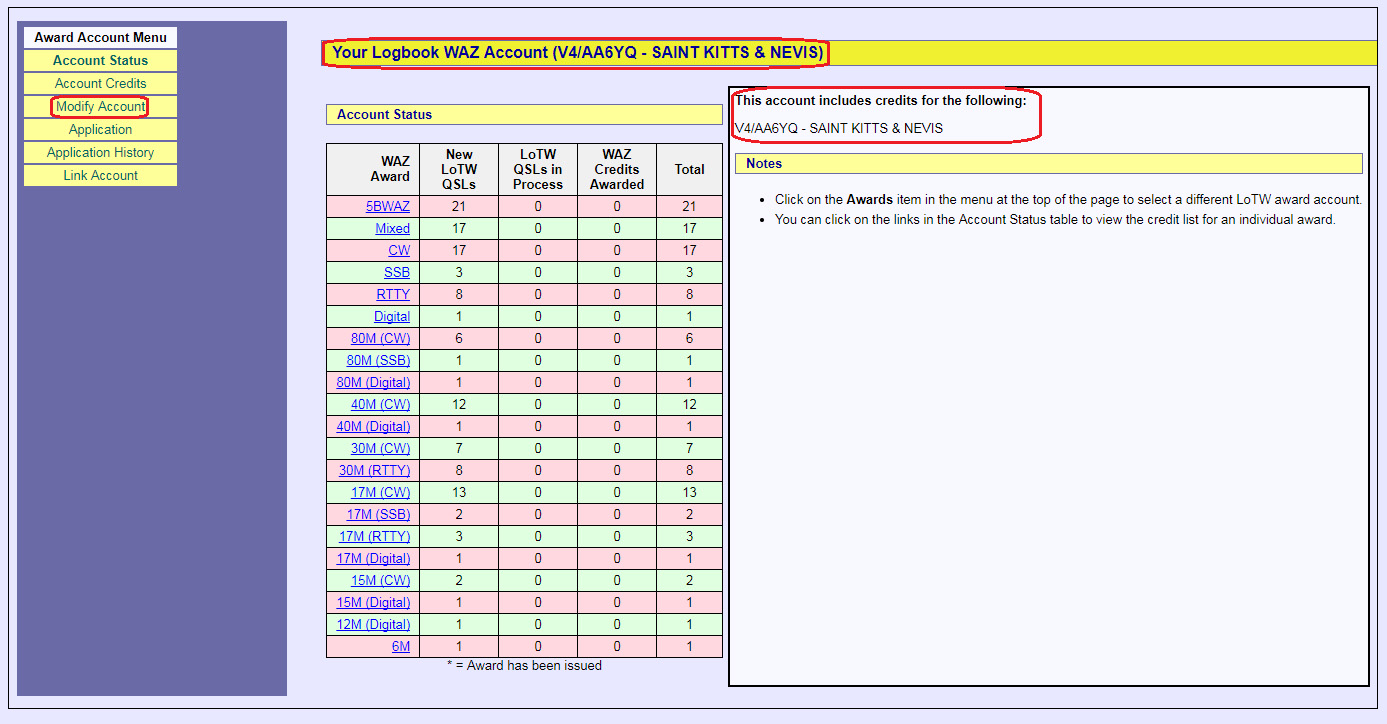
| 2. | Selecting the first of these accounts and clicking the Select WAZ Award Account button displays Account Status for the selected account. To merge the two accounts, click the Modify Account button in the Award Account Menu. |
 |
|
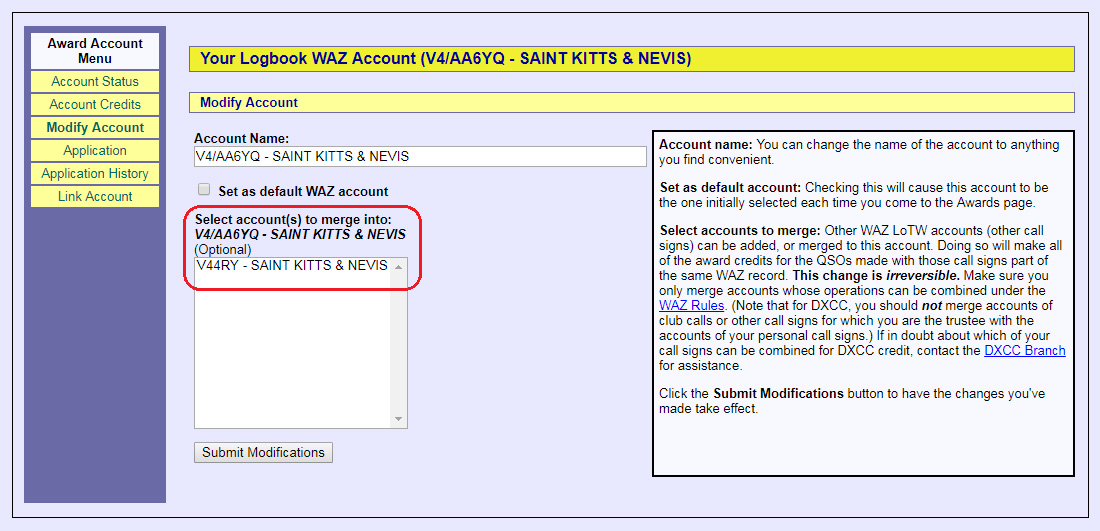
| 3. | Clicking the Modify Account button displays the Modify Account page, which enables you to
|
 |
|
| 4. | In the screen shot below, clicking the Submit Modification button at the bottom will
|
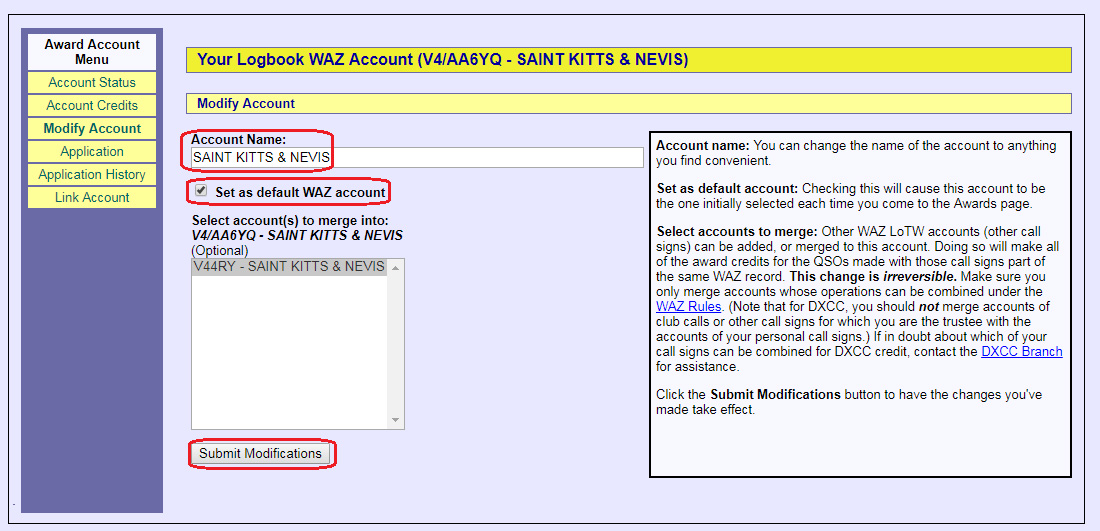 |
|
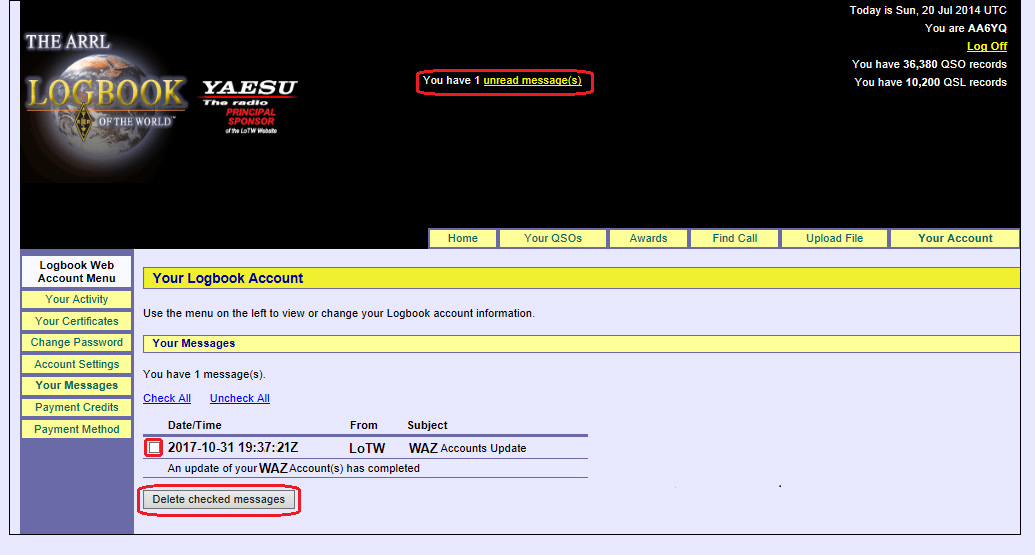
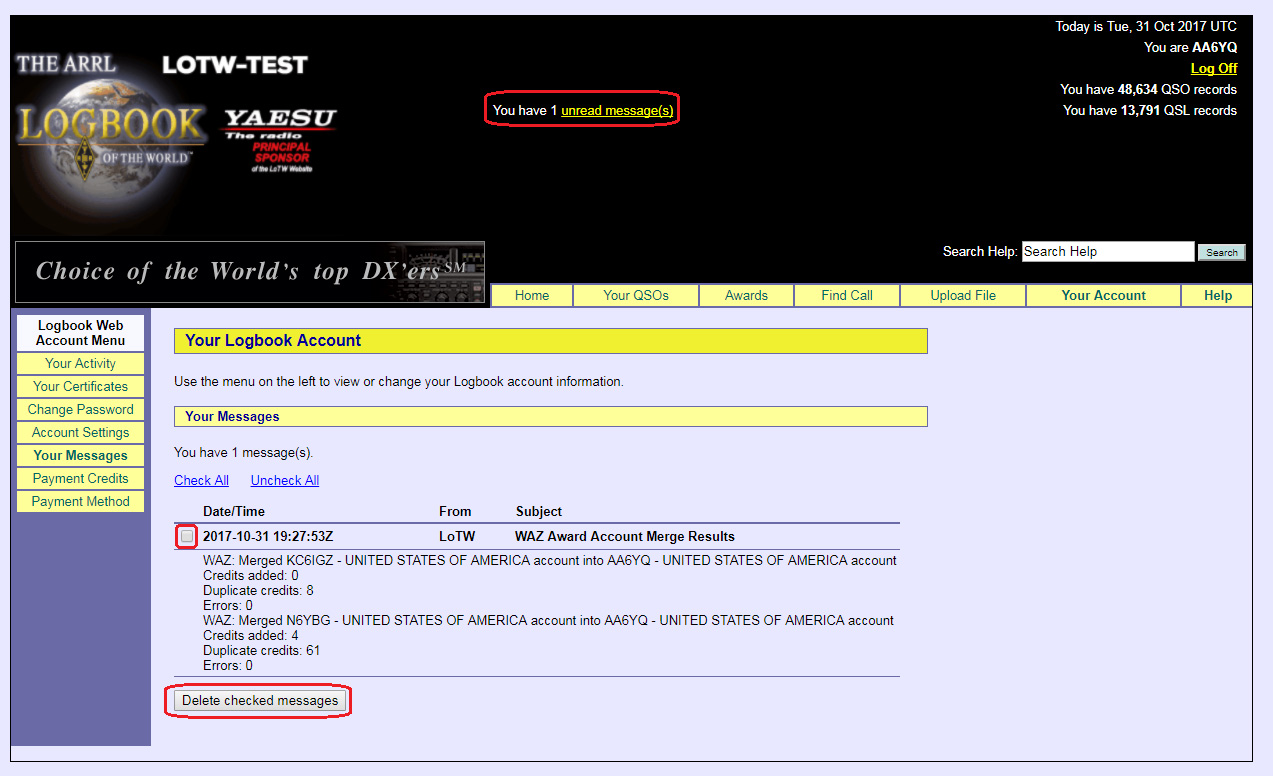
| 5. | The results of the merge operation will be conveyed via a message from LoTW. Click the red-highlighted hyperlink shown at the top of the screen shot below to view messages: |
 |
|
| To delete a message, check the the box highlighted in the above screen shot, and click the Delete checked messages button. | |
| Repeat steps 1-5 in the second example above to merge LoTW WAZ Award Accounts for each entity from which you've operated and hold more than one such Account. |
Linking the LoTW WAZ Award Account for a Entity to Your WAZ Record for that Entity
Whether you had only one LoTW WAZ Award Account for a entity, or merged several into a single LoTW WAZ Award Account for that entity, link that Account to your WAZ Record for that entity so that WAZ Award Credits granted to LoTW confirmations can be automatically applied to that WAZ Record.
| 1. | Log in to your LoTW Account |
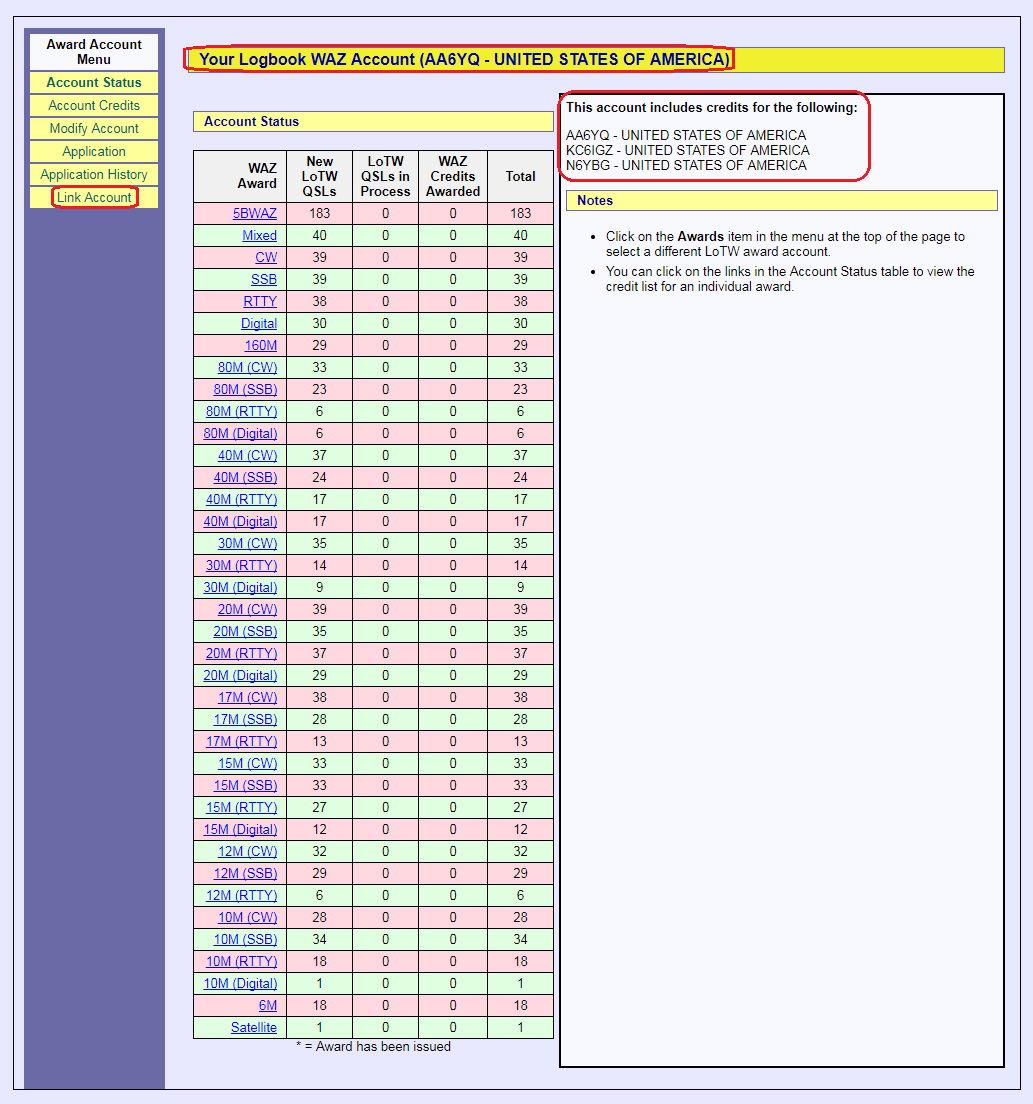
| 2. | Click the Award tab, and on the the Logbook Awards page, select the WAZ Award Account that you wish to link to the WAZ Record for that entity.
|
 |
|
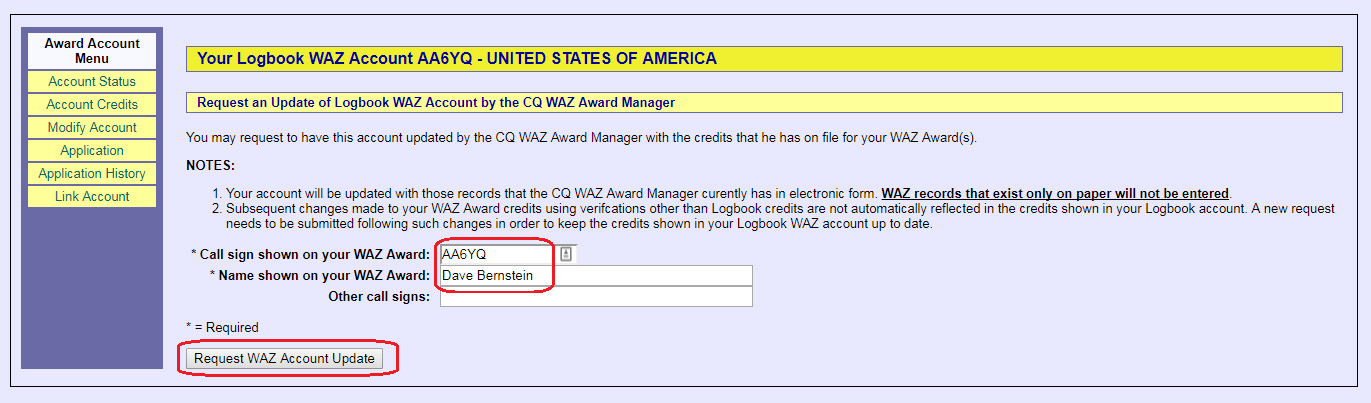
| 3. | Clicking the Link Account button will display the Request an Update of Logbook WAZ Account page; specify the callsign and name you wish to appear on WAZ awards, and click the Request WAZ Account Upgrade button: |
 |
|
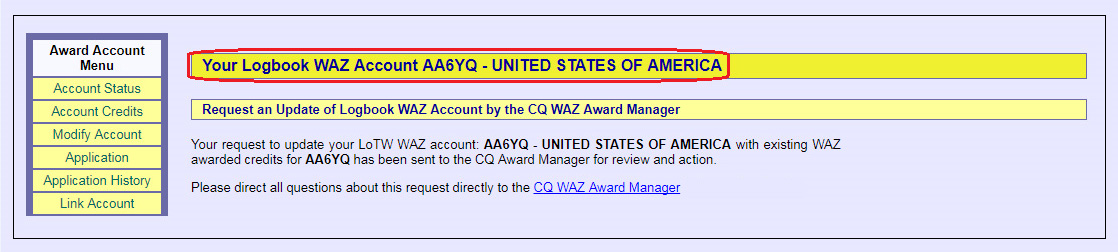
| 4. | Clicking the Clicking the Request WAZ Account button will submit a request to the CQ WAZ Award Manager to link the specified WAZ Award Account to your WAZ Record: |
 |
|
| 5. | The results of the link operation will be conveyed via a message from LoTW. Click the red-highlighted hyperlink shown at the top of the screen shot below to view messages: |
| To delete a message, check the the box highlighted in the above screen shot, and click the Delete checked messages button. | |
| Repeat steps 1-5 above to link each LoTW WAZ Award Account associated with a entity from which you've operated to your WAZ Record for that entity. |